Overview
The Bulk Add Form allows multiple Assembly Orders (AOs) to be created at once. This is especially useful for businesses managing products with multiple variants, such as apparel or food items, where several SKUs need to be produced together.
Instead of creating Assembly Orders one by one, this feature streamlines the process and reduces manual work.
When to Use This Feature
Use Bulk Add when:
- Producing multiple SKU variants at the same time
- Creating Assembly Orders for bundles or product groups
- Managing high-volume production workflows
How to Create Assembly Orders in Bulk
Step 1: Go to Inventory
- Navigate to the Assembly Orders section
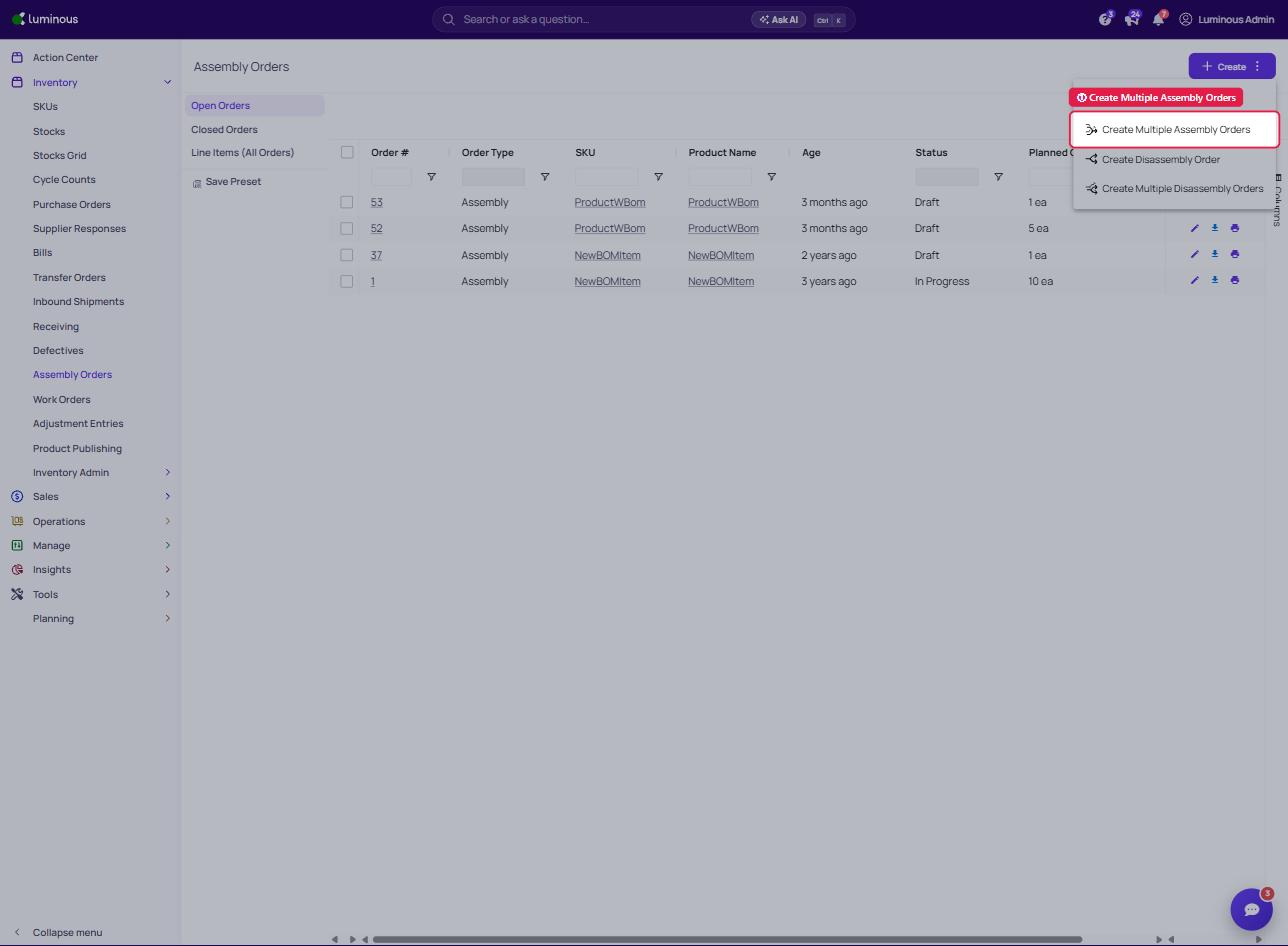
- Click the menu (⋮) on the Create button and select Create Multiple Assembly Orders
Step 2: Enter Assembly Details
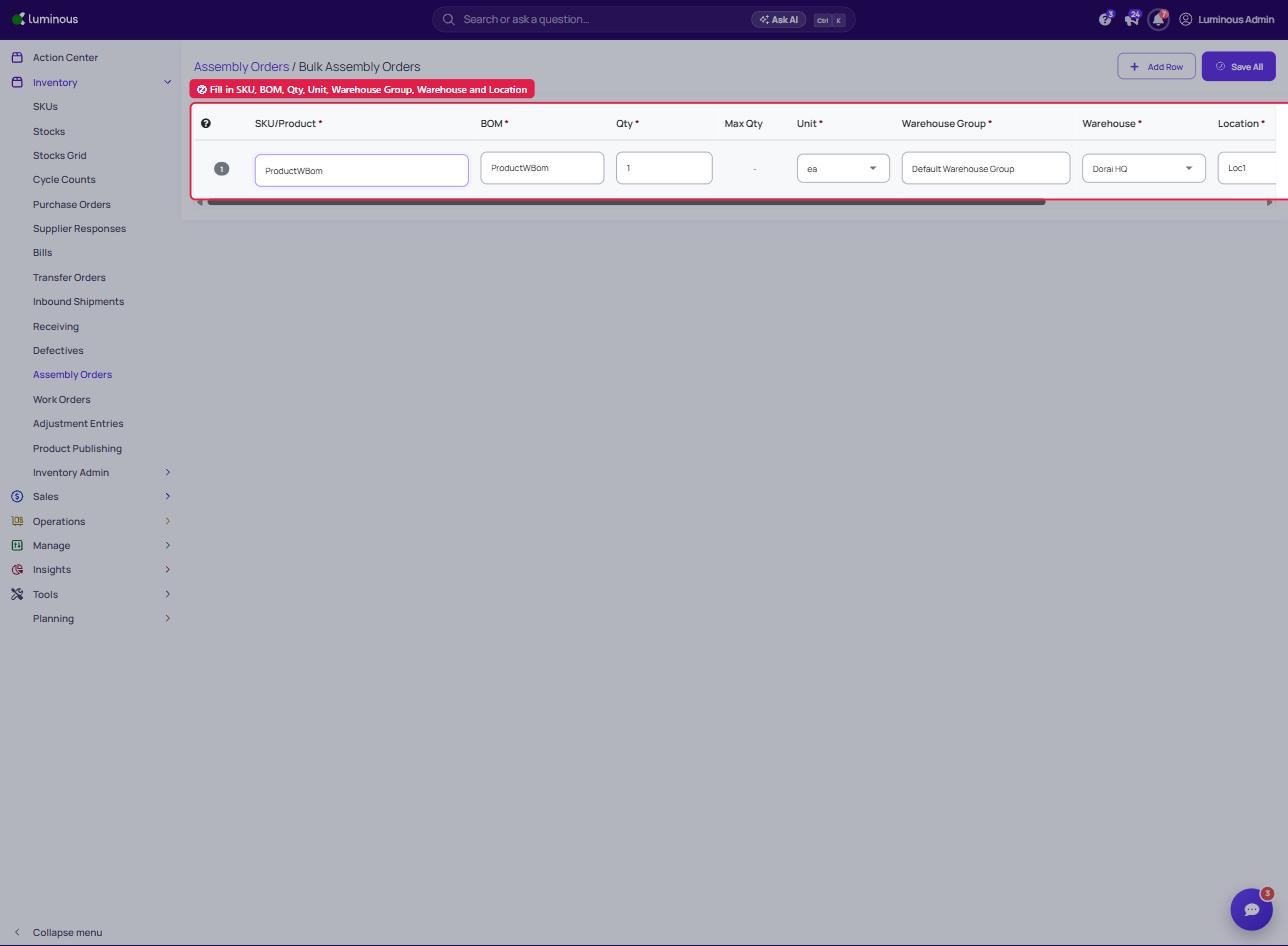
Fill in the required fields for each SKU:
- SKU – Select the product variant
- Quantity – Enter the number of units to produce
- BoM Selection – Choose the Bill of Materials
- Unit, Warehouse Group, Warehouse and Location – Select the unit and where the assembly will occur
- Click Add Row to add SKU/Product. A pop up window will show when adding new product row.
- Tick the box of the additional product
- Select Add selected
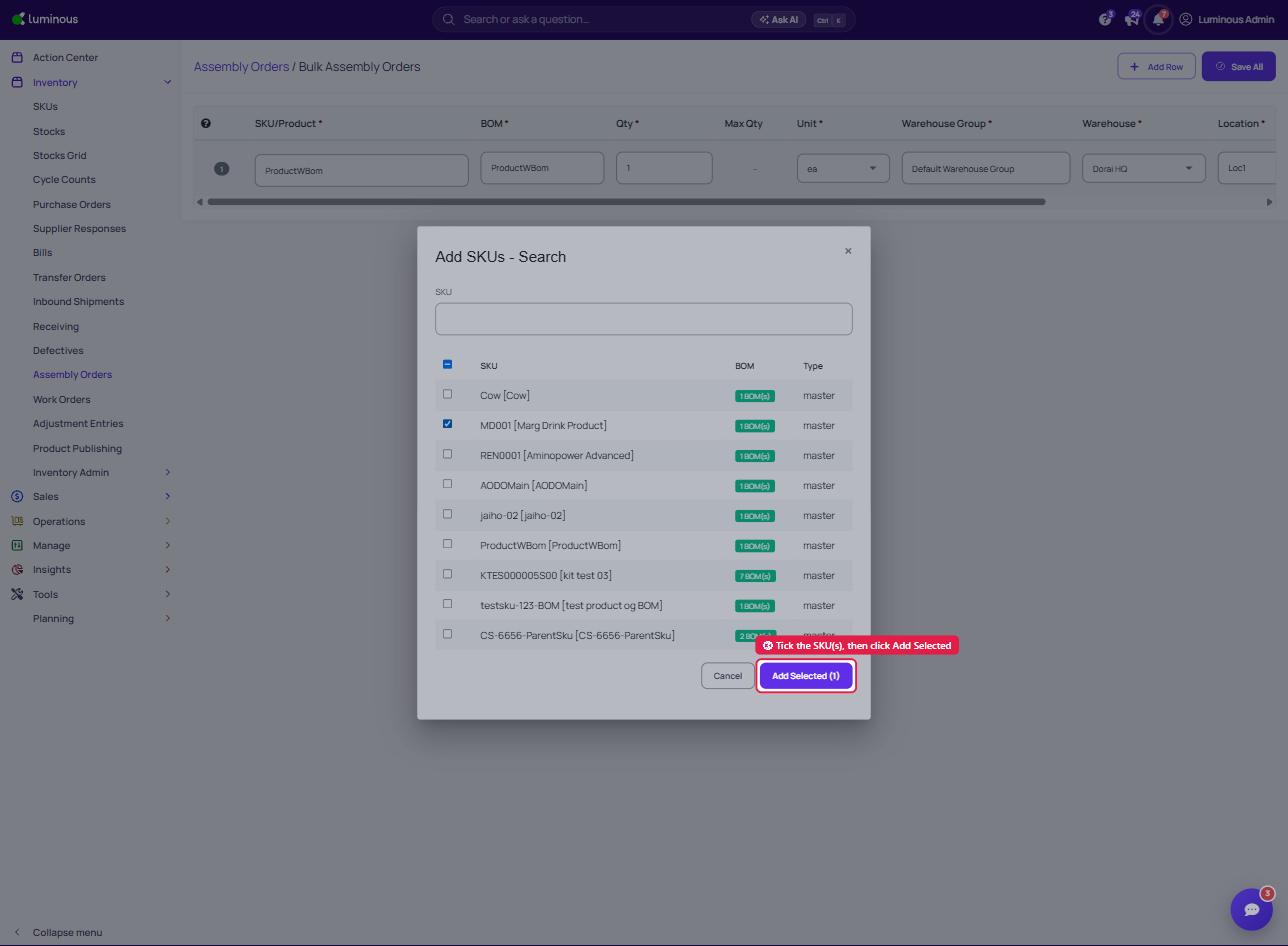
Assembly Orders are only available to those SKU/Product that has a Bill of Materials attached to it.
Step 3: Submit the Assembly Order
- Review all entries
- Click Save All to generate Assembly Orders
All Assembly Orders will be created at once.
Bulk Export Assembly Order PDFs
Step 1: Go to Inventory
- Navigate to the Assembly Orders page
Step 2: Select Multiple Orders
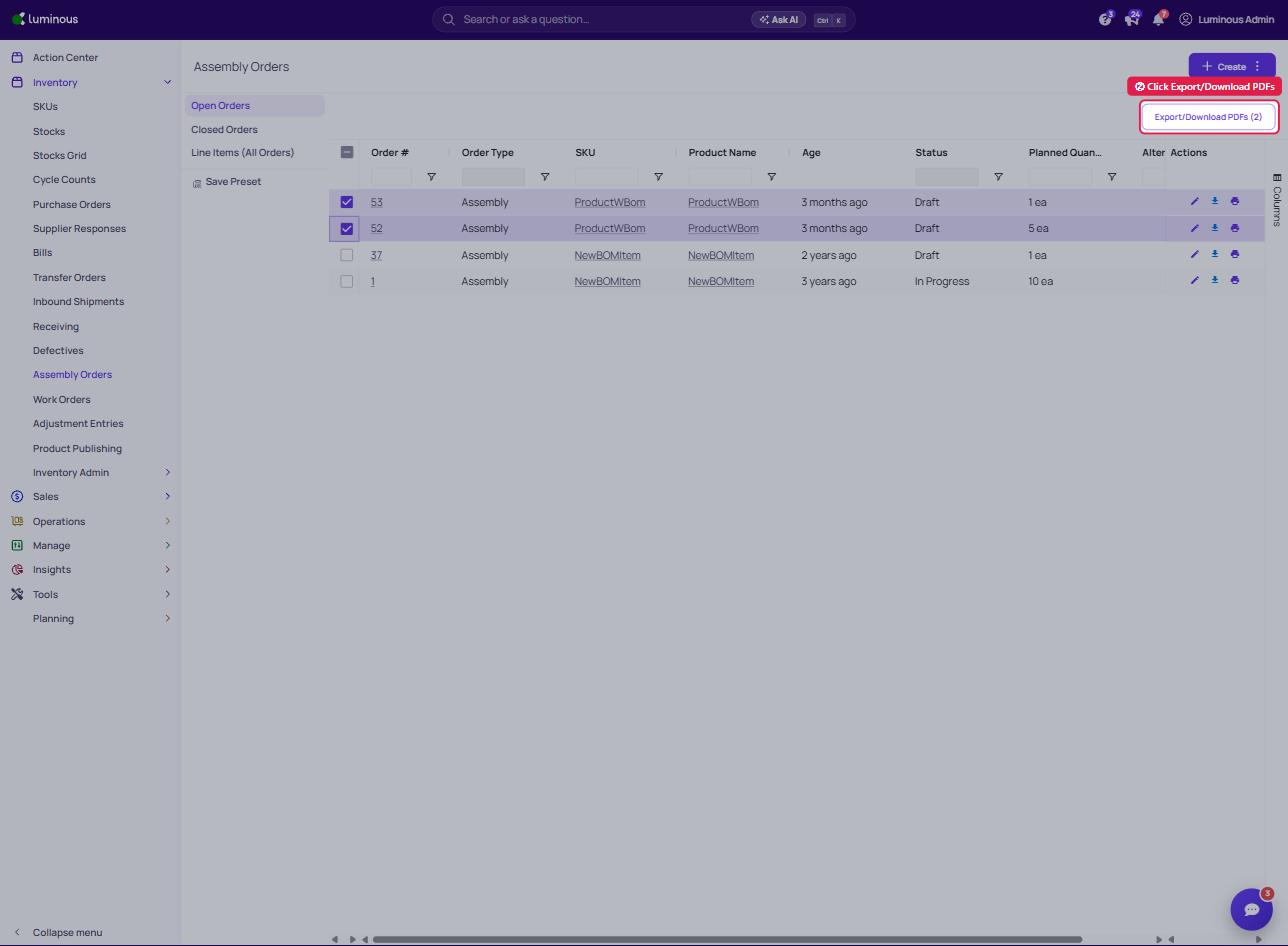
- Use checkboxes to select the desired Assembly Orders
Step 3: Export PDFs
- Click Export/Download PDFs
- Download or send the files as work orders to vendors
Key Benefits
- Reduces time spent creating multiple Assembly Orders
- Minimizes manual entry errors
- Improves workflow efficiency for high-variant products
Tips & Best Practices
- Double-check SKU and BoM selections before submitting
- Group similar products together for faster entry
- Use templates when available to standardize inputs
Troubleshooting
Assembly Orders not generating correctly
- Confirm all required fields are filled out
- Check that the selected BoM matches the SKU
Missing SKUs or errors
- Ensure SKUs are active and properly configured
Need More Help?
For additional support, please contact the support team.