Overview
The Backorder Fulfillment tool lets you find and fulfill orders that have available stock but haven't shipped yet. The Warehouse Group filter — now available directly in the Backorder Fulfillment modal — lets you scope that search to a specific warehouse group so that only stock and orders tied to that group are considered during simulation.
How It Works (Step-by-Step)
-
Navigate to Operations > Sales Orders or Sales Order Grid in the left sidebar.
-
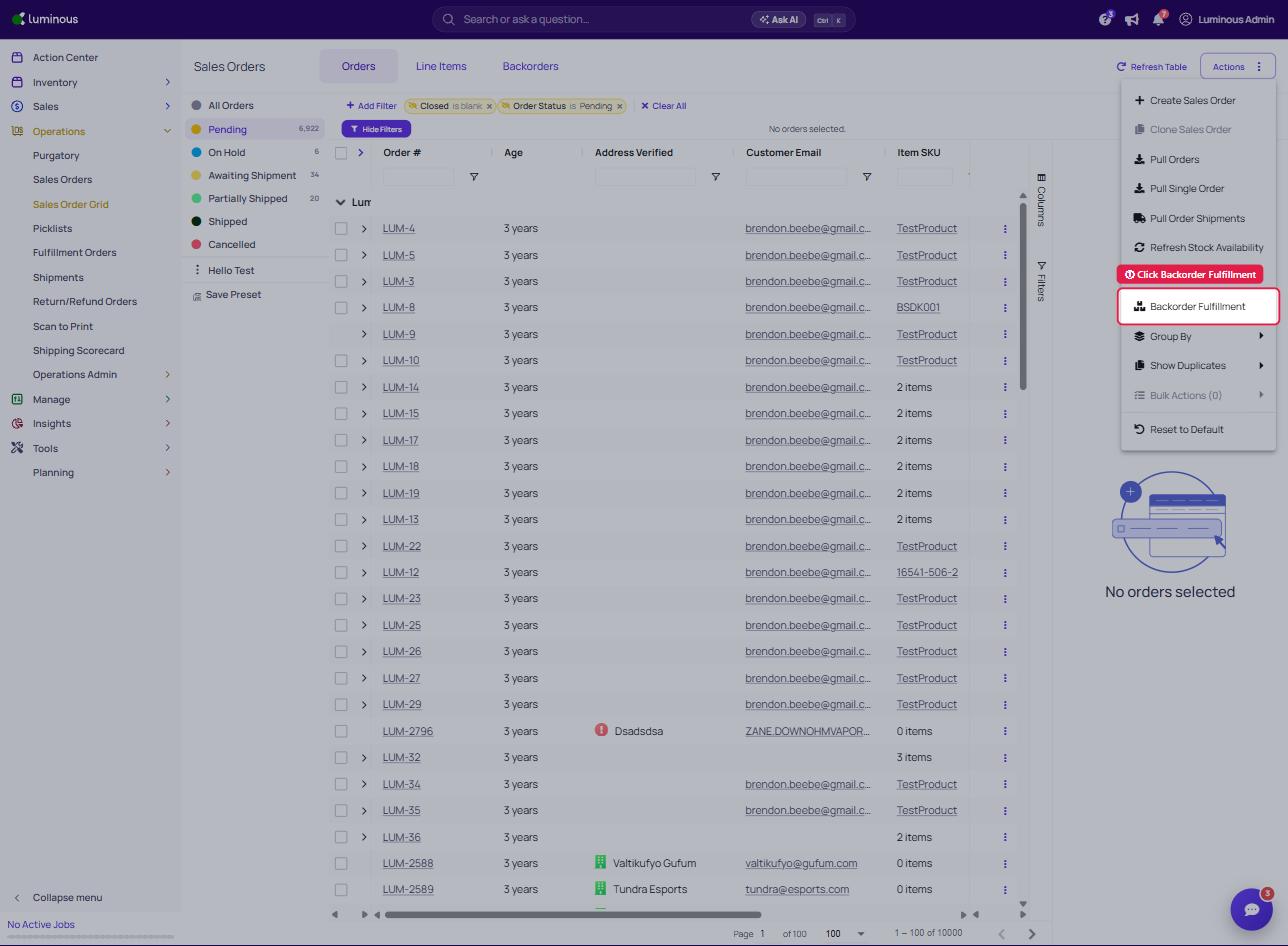
Click the Backorder Fulfillment option in the Actions menu (top-right of the Sales Order Grid).
-
The Backorder Fulfillment modal will open.
-
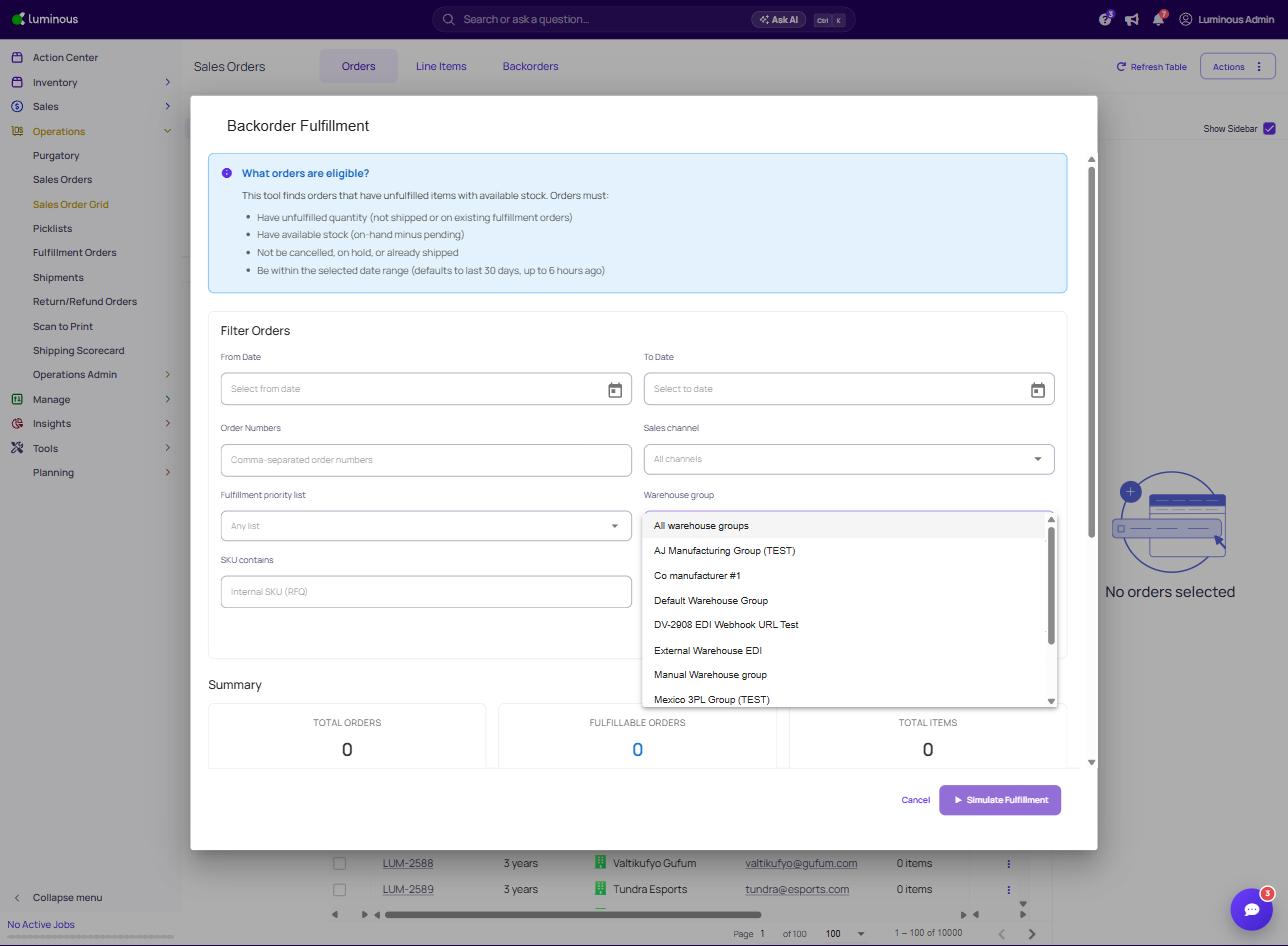
Under Filter Orders, locate the Warehouse Group dropdown.
-
Select the warehouse group you want to target (e.g., Warehouse 1). This scopes the fulfillment simulation to stock held within that warehouse group only.
-
Optionally apply additional filters:
- From Date / To Date — narrow by order date range (defaults to last 30 days, up to 6 hours ago)
- Order Numbers — enter specific orders comma-separated
- Sales Channel — filter by a specific sales channel
- Fulfillment Priority List — apply a priority list to control order processing order
- SKU Contains — filter by internal SKU (RFQ)
-
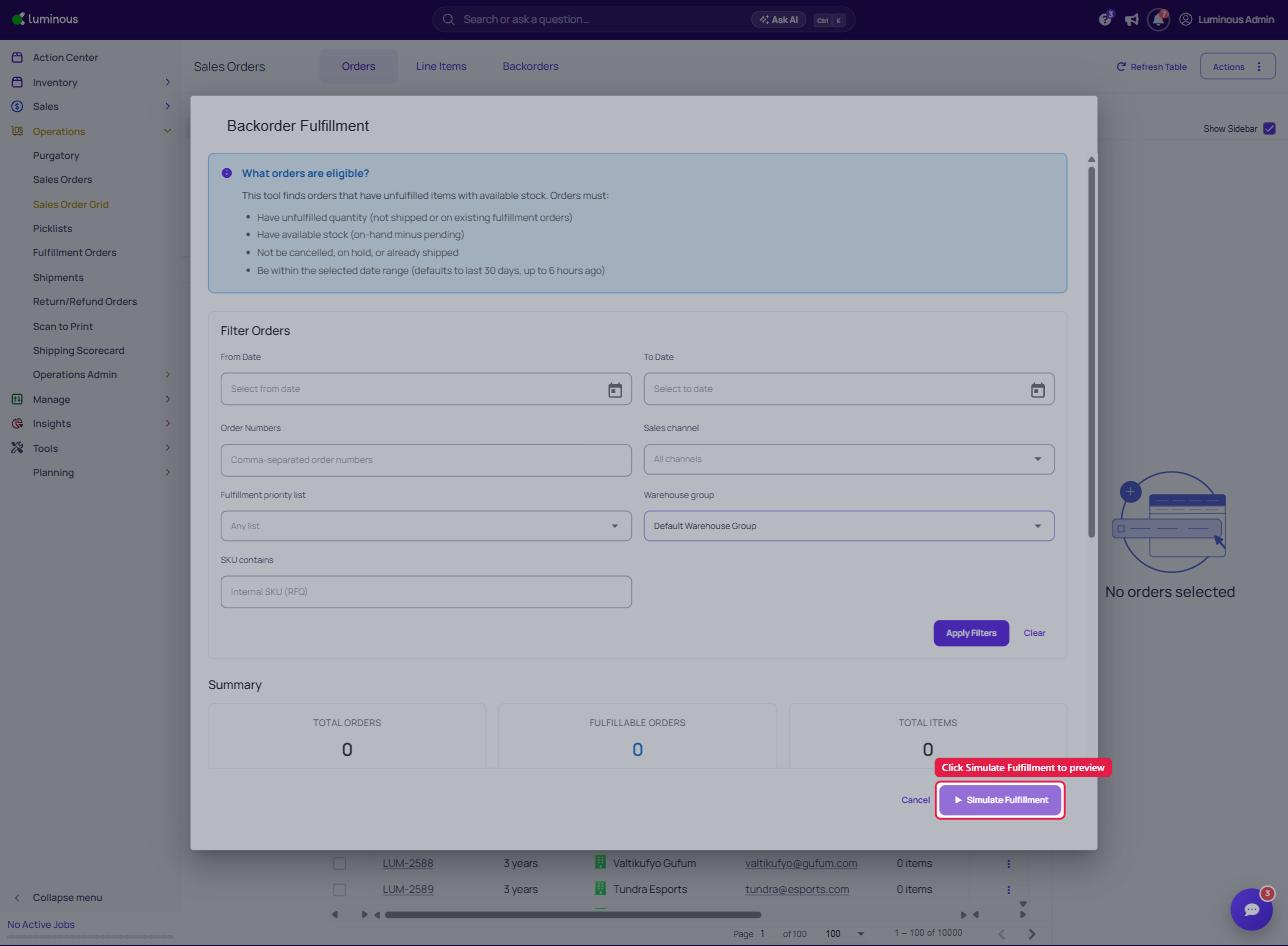
Click Apply Filters to refresh the Summary section.
-
Review the Summary metrics:
- Total Orders — all orders matching your filters
- Fulfillable Orders — orders that can be fulfilled with current available stock
- Total Items — total line items across fulfillable orders
-
Click Simulate Fulfillment (X selected) to preview what would be fulfilled before committing.
Key Features / Options
Warehouse Group Restricts both the order search and the available stock check to a specific warehouse group. If your business operates multiple warehouse groups (e.g., domestic vs. international, or by 3PL partner), this prevents cross-group stock from being incorrectly counted or assigned.
Fulfillment Priority List Controls which orders are prioritized when stock is limited. Works in combination with the Warehouse Group filter — priority rules apply within the scoped group.
Date Range Defaults to the last 30 days, with a cutoff of 6 hours ago. Orders more recent than 6 hours are excluded to allow time for any in-progress processing to settle.
Simulate vs. Commit The modal always runs a simulation first. No fulfillment orders are created until you confirm after the simulation step. This is a safeguard — review the simulation results carefully before proceeding.
Tips & Best Practices
- Always select a Warehouse Group when you manage multiple locations. Without it, the tool may surface orders tied to warehouse groups your team doesn't intend to fulfill from right now, which can inflate the "Fulfillable Orders" count and cause misfulfillment.
- Run the simulation before committing. The Simulate Fulfillment step shows you exactly which orders and items would be created into fulfillment orders. Use it to catch unexpected results before anything is written.
- Use Fulfillment Priority Lists alongside the Warehouse Group filter when you have SLA tiers or VIP customers — the combination ensures priority rules are respected within the correct inventory pool.
- The "up to 6 hours ago" cutoff is intentional. Very recent orders may still be processing through your sales channel sync. Running backorder fulfillment on orders less than 6 hours old can cause conflicts with in-flight data.
- Available stock = on-hand minus pending. Stock already allocated to other open fulfillment orders is excluded automatically.
FAQs & Troubleshooting
Q: I selected a Warehouse Group but the Fulfillable Orders count is 0 — why? All orders matching your filters either have no unshipped quantity, have no available stock in that specific warehouse group, or are in a cancelled/on-hold/shipped status. Try broadening the date range or checking inventory levels for that group directly under Inventory.
Q: The Warehouse Group dropdown shows a group I didn't expect as the default — is that correct? The modal may pre-populate based on your account's default warehouse group. Verify and update your selection before applying filters.
Q: Can I run backorder fulfillment across all warehouse groups at once? Yes — if no Warehouse Group is selected (field left blank or set to "All"), the tool will search across all warehouse groups your account has access to. Use this with caution in multi-location setups, as it may match stock from groups you don't intend to fulfill from.
Q: What happens if an order spans multiple warehouse groups? Only the items that have available stock within the selected warehouse group will be considered fulfillable. The modal will not split an order across groups automatically — you would need to run the tool separately per group.
Q: Does filtering by Warehouse Group affect the Fulfillment Priority List behavior? Yes. Priority list rules are applied within the scoped warehouse group. Orders outside the selected group are not evaluated against the priority list in that run.
Q: I see a count mismatch between Total Orders and Fulfillable Orders — is something wrong? This is expected. Total Orders is the raw count of orders matching your date/channel/SKU filters. Fulfillable Orders is the subset that also has available stock in your selected warehouse group. A large gap typically means significant backorder depth or limited stock on hand.
Additional Help
If you encounter unexpected behavior or need help configuring your warehouse groups, please contact the Luminous support team directly through the Help & Support link in the bottom-left of your Luminous account.