What?
B2B portal templates allow you to customize which wholesale clients see specific products when they log into the client-facing B2B Portal. Categorizing by client type can make it easier to push applicable templates and organize data.
Why?
If you have clients that typically only shop for certain products that you offer, this is perfect for you. Organizing wholesale clients by type makes it easier for you to conduct transactions with wholesale partners.
How?
1. Creating a New B2B Product Template
-
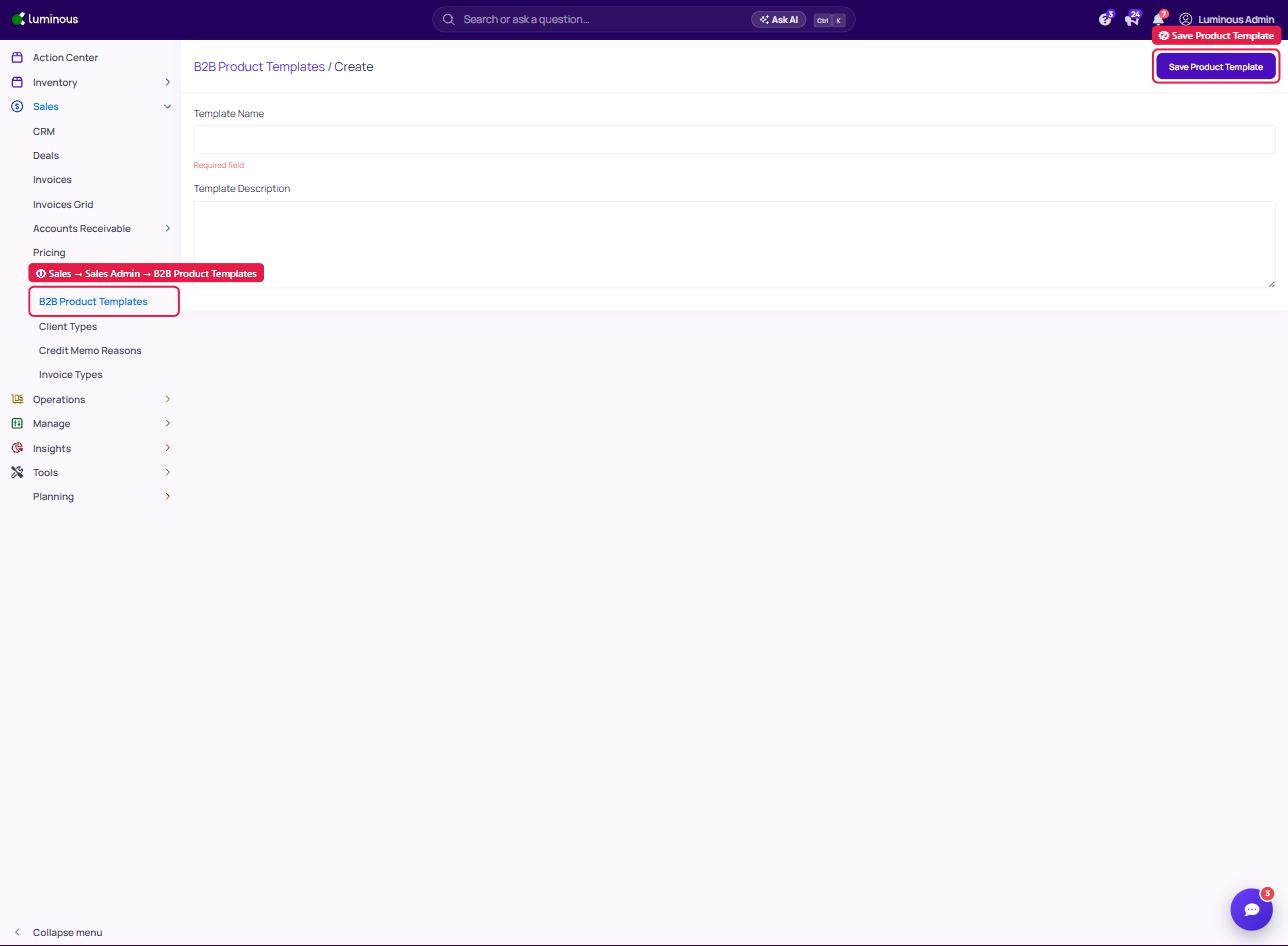
From the left-hand navigation menu, go to Sales.
-
Under Sales Admin, select B2B Product Templates.
-
Click the “+ Add New B2B Product Template” button at the top right.
-
Enter the required details such as Template Name and Template Description.
-
Click Save Product Template to create the template, then open it and click Edit to add the products you want to include.
-
Click Save Changes once you’re done to update your product template.
2. Adding products to the template
- One by one: In the table, toggle Is Added? on for any SKU you want included (toggle off to remove).
- Bulk actions:
- Add all from current list – adds all SKUs shown on the current page.
- Remove all from current list – removes all SKUs shown on the current page.
- Add all results – adds every SKU returned by your current filters (across pages).
- Remove all results – removes every SKU returned by your current filters.
- Save the template
- Click Save Changes (top-right).