Adjustment entries play a key role in keeping your inventory records accurate and up to date. From this page, you can easily view all past adjustment entries and create new ones to ensure complete transparency and control over your inventory management.
Accessing Adjustment Entries Page
-
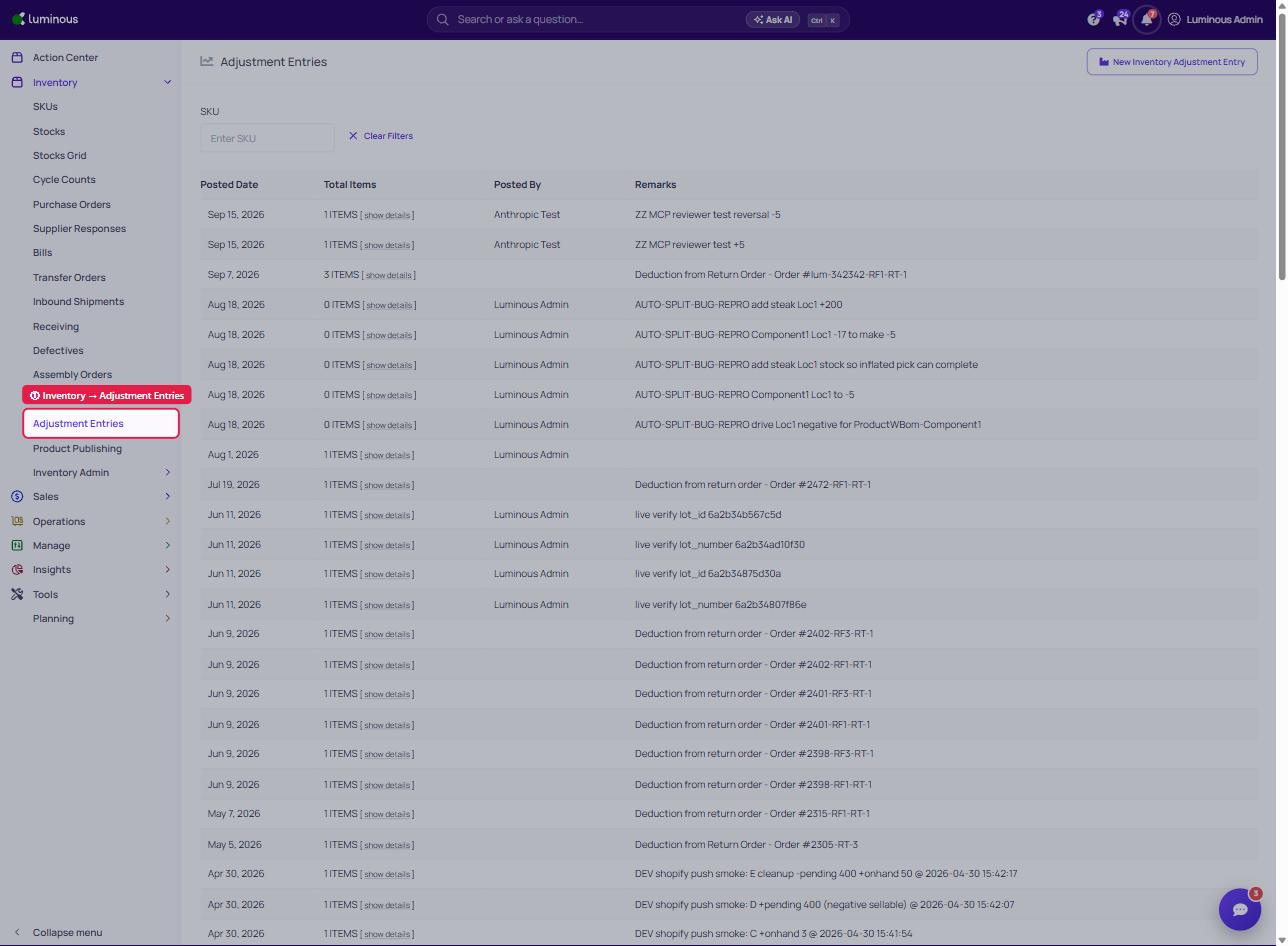
From your account, navigate to the left pane dashboard and select Inventory button.
-
Select Adjustment Entries from the available options.
-
You’ll be directed to a page displaying all existing adjustment records.
Creating a New Adjustment Entry
- Go to Adjustment Entries
- Click the New Inventory Adjustment Entry on the top right corner.
- Choose filter option if adjustment will be made by SKU, Keyword Search, Location, or Sales Order.
- Adjustment using SKU:
-
Search for the SKU that needed to be adjusted
-
Add New Warehouse stock Entry
-
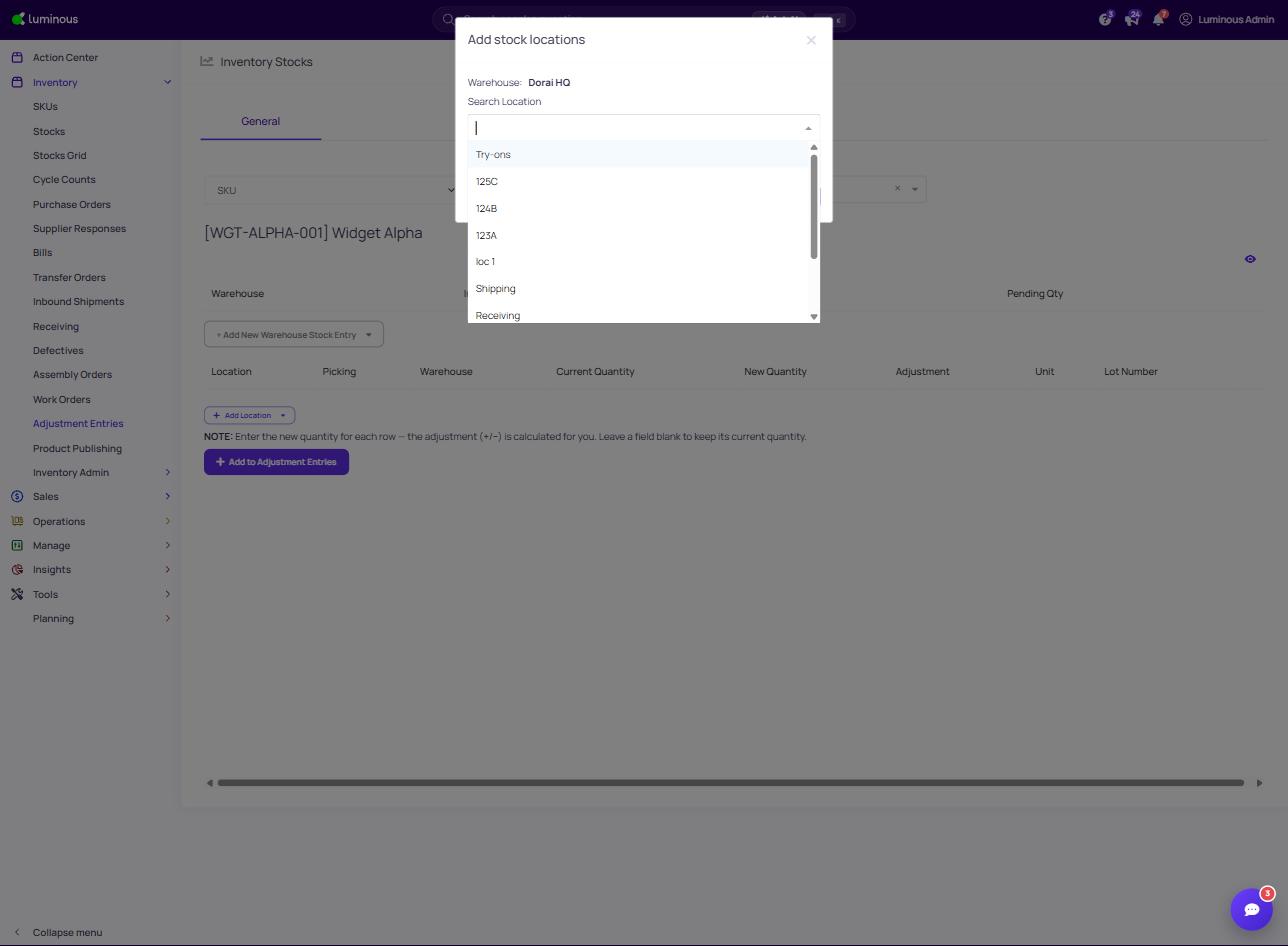
Click Add Location, choose the warehouse, then search and choose the location in the Add stock locations window and click Add Locations.
-
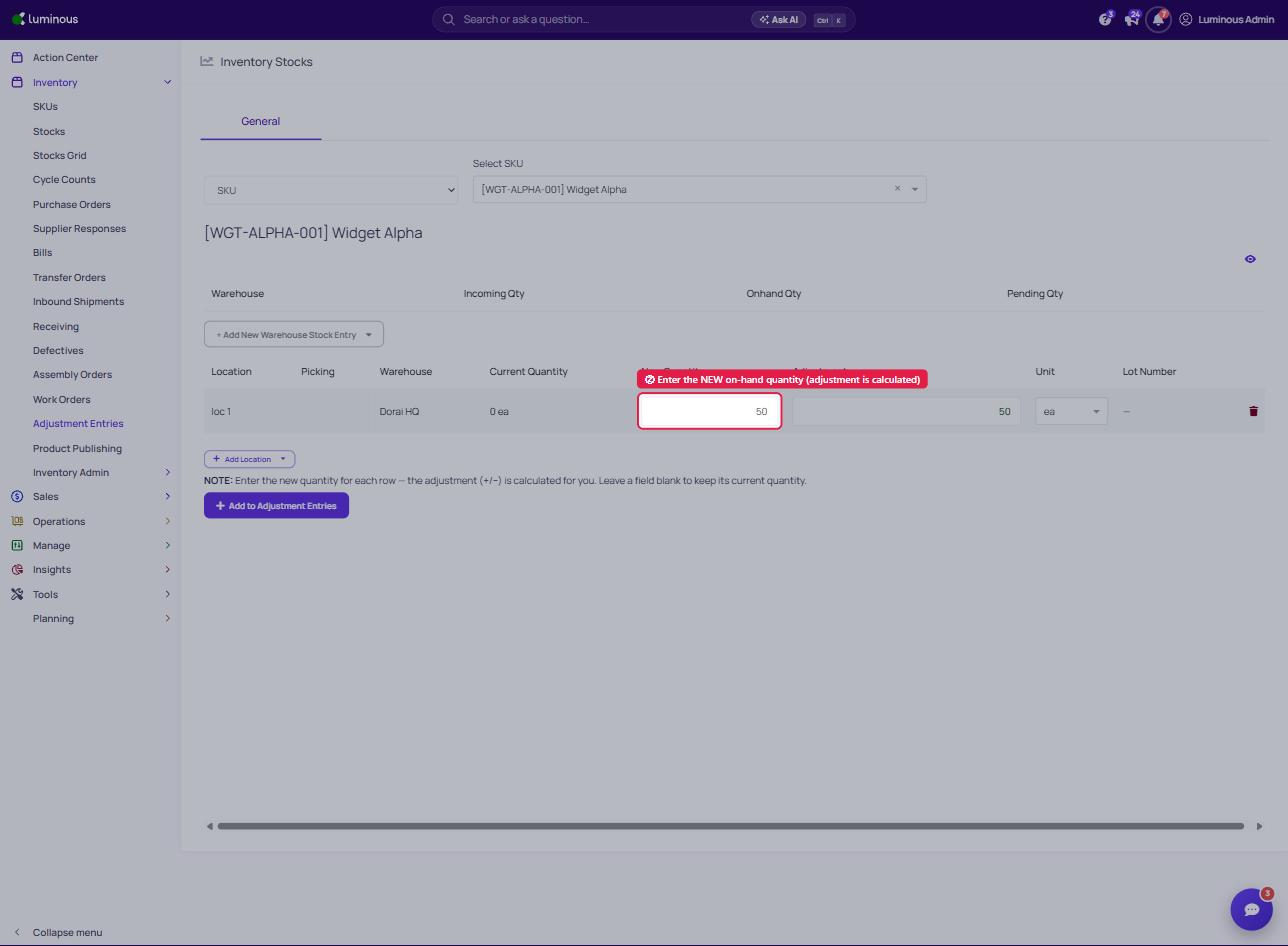
Enter the new quantity for the location in the New Quantity column. The Adjustment (+/-) is calculated for you automatically.
-
Add to adjustment entries and Post. A prompt will be displayed click okay if all information are correct.
-
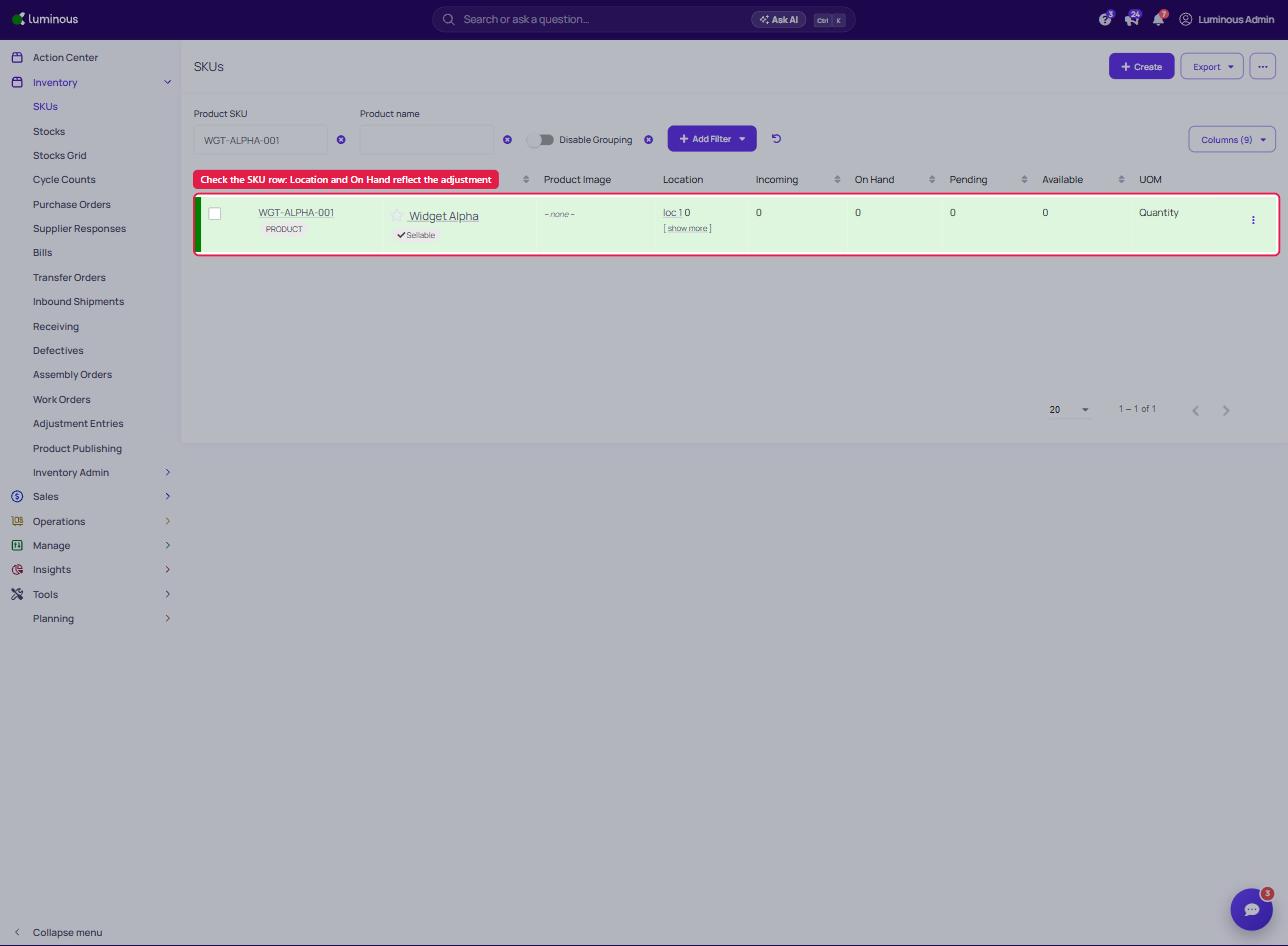
Go back to SKU tab to check the adjustment made.
-
- Adjustment using Location:
-
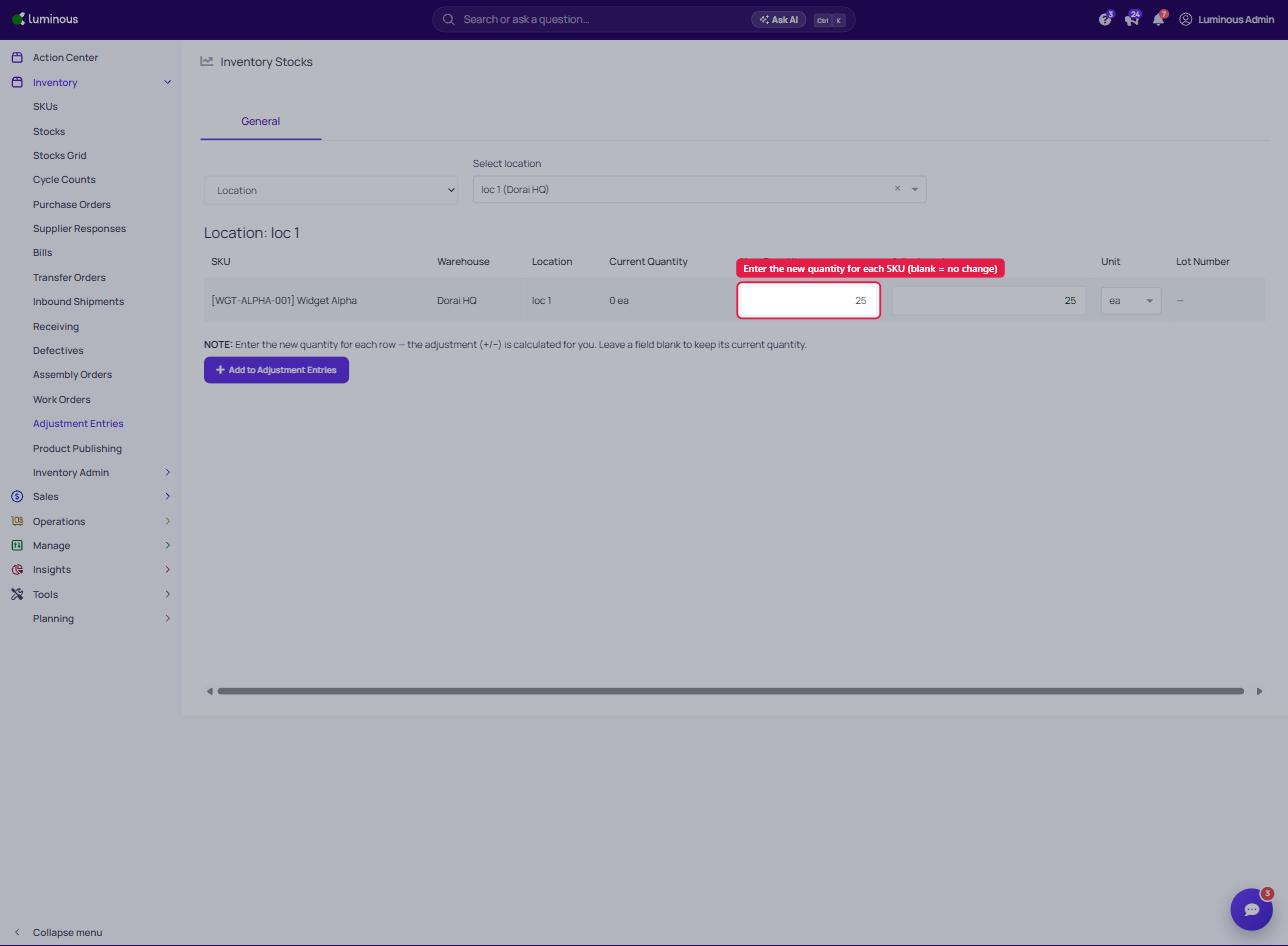
Search and select the Location that needed adjustment. It will show all the SKU inside that chosen location.
-
Enter the new quantity for each SKU in the New Quantity column; the adjustment (+/-) is calculated for you. If no adjustment is needed, leave the field blank to keep its current quantity.
-
Select Add Adjustment Entries. Check if all information is correct and select Post adjustment entries.
Note: Adding remarks is not required however it can help for tracking purposes.
-
- Adjustment using Sales Order
- Search the Sales order
- Indicate the quantity of the SKU
- Note that this sales order adjustment is best to use to initiate a return and need to receive the inventory back in.
- Adjustment using SKU:
Your new adjustment will immediately reflect in your inventory count and appear in the adjustment history for full traceability.